
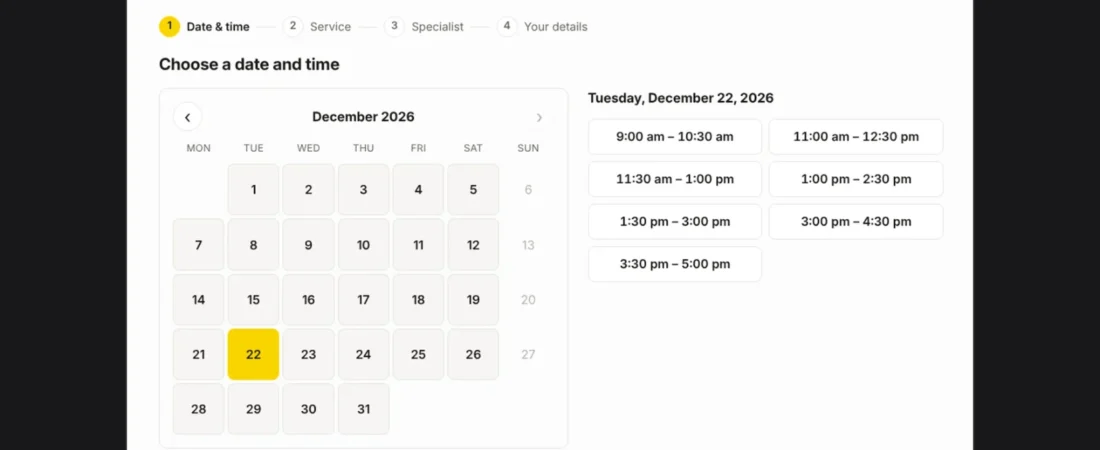
A customer rarely needs just one thing. Assemble a wardrobe, hang a TV above the dresser, fix a door that sticks. A booking form that takes one service at a time turns that into three appointments, three emails and a calendar that looks busier than it is. And you still arrive without knowing which wardrobe it is or what the wall looks like.
Why the usual setup falls short
Most booking forms treat one appointment as one service. Combined bookings, where they exist at all, tend to sit behind a higher plan or a paid add-on. Photos and product links travel separately, by text or email, and get lost before the day of the visit.
How LTT Booked handles it
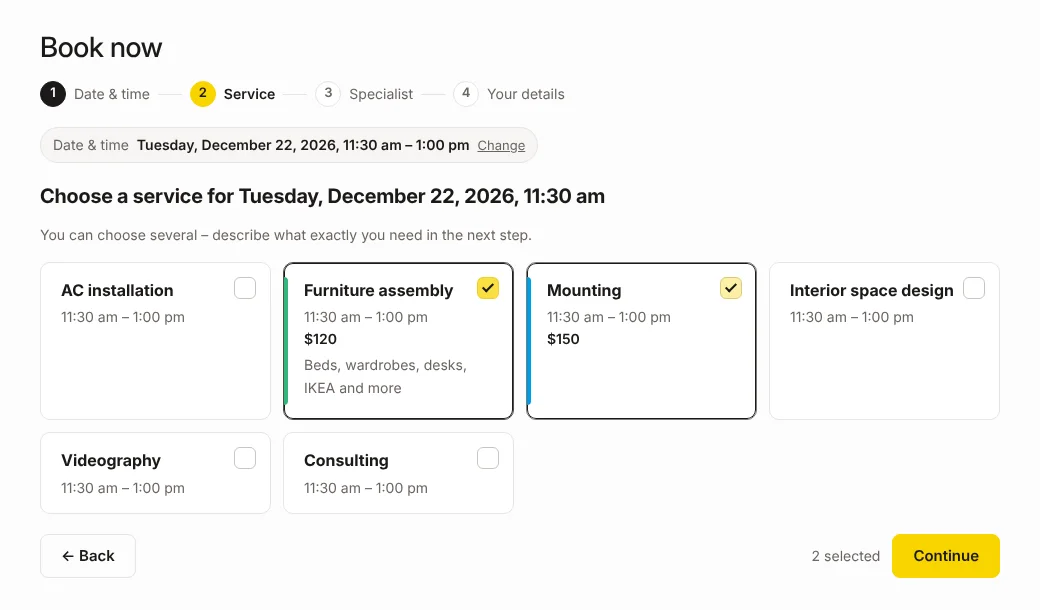
- The customer picks the date and time first, then sees only the services that fit that time.
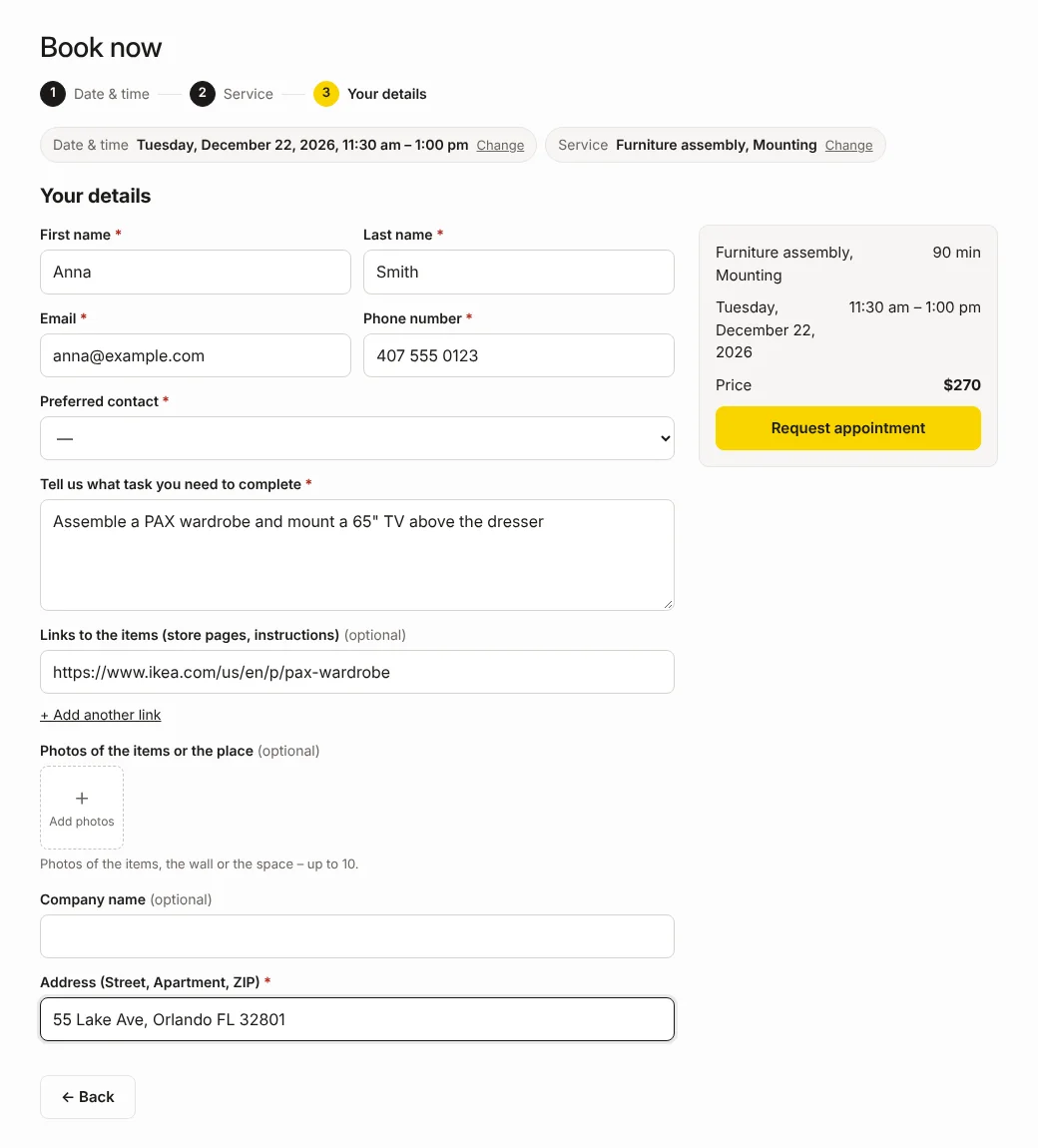
- They can tick several services for the same visit. Prices and deposits add up, and the summary shows the total before they send the request.
- Only staff members who provide every selected service are offered.
- In the details step the customer describes the task, pastes links to the items (store pages, assembly instructions) and adds up to 10 photos of the items or the place. Photos are compressed in the browser first, so uploads stay quick on a phone.
- You see everything on the appointment page in Bookings → Appointments. Photos are stored privately, outside the media library, and only admins can open them.
Set it up
- Open Bookings → Settings → General. Set Order of steps to date and time first, and turn on Several services.
- Open Bookings → Settings → Booking form. Make sure the Product links and Photos fields are there, and drag them where you want them in the form.
- Open Bookings → Settings → Customer photos. Choose how long to keep photos after a cancellation and after a visit, from 7 days up to 5 years, or keep them until you delete them yourself.
- Make a test booking with two services and a photo, then open it in Bookings → Appointments.
What it does not solve
- Durations do not add up. A combined visit lasts as long as the longest selected service. If jobs usually run back to back, give those services longer durations or create a combined service.
- The total is the sum of your listed prices. A final quote after you see the job is still up to you.
New to the plugin? Start with Set up your first booking flow with LTT Booked.